Introduction
Foundry VTT worlds can be oversized in two ways:
- They take up too much data storage, resulting in users hitting their data storage limits.
- They have too many actors, items, journals, and/or scenes, resulting in the world bloating beyond a size capable of running or being able to be loaded into easily.
Both are correlated with one another, but the latter is usually far more of an issue. A world doesn’t have to be completely non-functional to have a size issue- worlds that are starting to become too large may have loading issues at first, or mild instability while playing. In addition, users with oversized worlds may experience significant issues migrating their data after a significant game system or Foundry VTT update.
We explain how to check world size, and resolve any issues with it below.
Checking World Size
We explain how to check if world size is an issue in the immediate following two sections.
V12 and Beyond
File size of a world matters a lot less after version 12 of Foundry VTT, though it can still be useful as an indicator. If the world is constantly more than 150mb (it naturally changes during live play), you may want to consider examining the amount of entities in the world.
Entities, such as actors, scenes, items, journals, playlists, and macros can actively slow down a game’s loading and functionality if they begin to exceed a certain amount. This is more important of a consideration. Generally, we recommend keeping a world to under 2000 entities at any one time
You can check the total number of entities in a world by:
- Opening the world in question.
- Navigating to the Game Settings menu:

- Selecting “Support & Issues”:
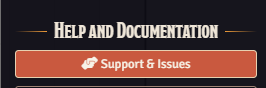
- And viewing the total number of entities in the Support Details section.
V11 and Before
World size issues can be diagnosed by following the same process as above, though literal file size is usually a better guide for worlds on V11 and before.
Users may start to see increased loading times around the 30+ MB mark. This is because Foundry VTT sends the world databases that make up this size to each player on every load (to make a complicated story short). This can disrupt players loading in, even on faster internet connections. If your world becomes large enough (100+ MB), you may even see some instability, or outright crashing of the world.
Checking world size on The Forge
First, you’ll want to evaluate if your world’s size is a potential issue. You can do this on The Forge via the following steps:
-
Navigate to your Forge setup menu: The Forge
-
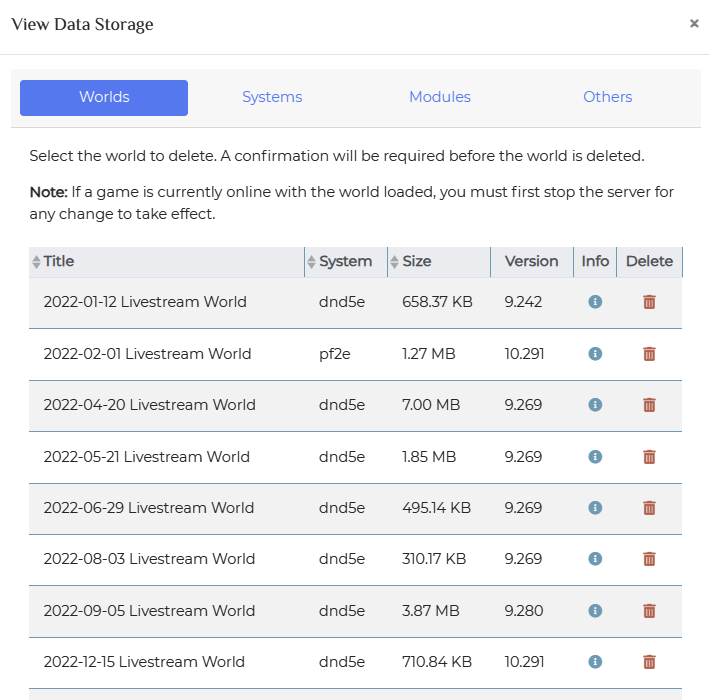
Click “View Data Storage”.
-
Take a look at the “Worlds” tab, as depicted below:

Checking locally
We only advise checking locally if you are certain there is a problem with your world, and it fails to function appropriately upon import. You can check a world’s size locally by following the steps below.
- Navigate to the Forge’s Setup Menu.
- Click “Export World(s)”
- Unzip the zip file that is downloaded.
- Navigate to the unzipped folder.
- Navigate to the “data” folder, which contains the db files of the FoundryVTT world
- Right click on the folder, and check its properties (in Windows) to see the total file size inside. This will tell you whether the world is too large.


Please be advised that fog data generally does not impact world loading limits.
What causes world size issues?
Before fixing the world size problem, you should figure out what caused it. There are usually three causes for world size issues.
Excessive “entities” (actors, scenes, items, etc.)
If you have too many scenes, items, or actors within your world, this can cause world size issues. This usually only occurs if you have hundreds of items, actors, or scenes directly in your world. This is pretty self-explanatory to check for (see how many of them are in your world), and is usually pretty easy to fix- we explain how to do so in the fixing section, below.
Excessive chat size
Chat size for a world can swell over time, especially when modules or excessive logic/data within chat messages are involved. If your chat has not been cleared in many months, and you have regular sessions, this could be the issue.
Module issues/conflicts (only for pre-V11 worlds)
The second cause of bloated world sizes is due to modules, where due to a bug or conflict with another module, the module will jam garbage into one (or more) of the world database files. This can result into worlds that balloon from a nice, safe 5-10 MB up to and in excess of 500 MB.
Checking locally to find the cause
To determine for sure which is the issue, you can check your db files locally. To do so:
- Navigate to the Forge’s Setup Menu.
- Click “Export World(s)”
- Unzip the zip file that is downloaded.
- Navigate to the unzipped folder.
- Navigate into the “data” folder, which contains the db files of the FoundryVTT world
- Check each folder for a .db file that appears excessively large

IMPORTANT NOTE: Fog.db will be large simply by its design (it’s storing the Fog of War exploration for all players). A larger fog.db file will usually not increase loading times, and does not negatively affect overall world performance. You can slim fog.db down by moving Scenes you don’t need into Compendiums, or disabling “Fog of War Exploration” for scenes you don’t need it on.
In the above case, it appears the chat.db (as of version 10, this is now messages.db) is getting pretty large. In order to help increase loading speeds, it would be a good idea to clear the chat log in Foundry VTT to improve them.
In other cases, it might be the actors.db, or items.db, due to excessive imports/creation of items/actors, or module issues. Either way, we explain how to fix it all below.
Fixing this
Now that you’ve determined the issue/problematic .db file, you can now fix the problem. We explain how to address each potential issue below:
Fixing an enormous chat log
If the world will still load in, however slowly:
- Load into the world.
- Navigate to the bottom right of your chat window.
- Select the “Trash” or “Bin” icon.
- You will receive a confirmation menu, asking if you truly wish to delete the world. Select, and confirm yes. The chat will now be cleared.
If the world won’t load in at all:
- Navigate to the Forge’s Setup Menu.
- Click “Export World(s)”.
- Unzip the world. Make a backup of your world at this point, just in case you accidentally delete something important.
- In the
datafolder of the world, delete thechat.dbfile,messages.dbfile ormessagesfolder. - Use “Summon Import Wizard” here: The Forge to re-upload the world.
Fixing world size due to excessive actors/items/etc.
- Create a compendium or compendiums within the world, or use The Forge’s shared compendium tool to create a compendium module. If you do the latter, make sure to enable it after creation.
- Move actors/scenes/items you no longer actively required into compendiums. Continue doing so until you have moved everything you no longer actively require.
- Close/shutdown the server once you are done, via The Forge’s My Foundry menu.
- Check your world size again, to confirm it has been sufficiently reduced. If not, repeat steps 2-4 until complete.
Fixing a .db file due to module issues (only for pre-V11 worlds)
- Navigate to the Forge’s Setup Menu.
- Click “Export World(s)”
- Unzip the exported zip file. Make a backup of your world at this point, just in case you accidentally delete something important.
- Use a text editor (like Notepad++) to find the offending section (typically a massive repeat of something, like commas, or
0,0,0,0,0,0,0,0,0,0) - Delete the offending repeating information
- Use “Summon Import Wizard” here: The Forge to re-upload the world.
Fixing via CLI
For developers and content creators who have a reason for wanting to edit the .db files directly, we would recommend looking into the official Foundry VTT CLI, which support unpacking of .db files to .json files, and then re-packing them to LevelDB. You can find it here.


